Sending a PDF over email still works, but it is rarely the best option. Attachments get blocked, version numbers pile up, and you have no idea who opened what. A public link is faster, cleaner, and gives you control over the file after you send it.
This guide walks through the realistic options for uploading a PDF online, the tradeoffs of each, and how to pick the right tool for the job, whether you are sending a proposal, publishing a whitepaper, or sharing a portfolio.
What "uploading a PDF online" actually means
There are three different things people mean when they search for this:
- Send a PDF to one person without using email attachments.
- Publish a PDF publicly so anyone with the link can read it.
- Host a PDF as part of a brand or product, a pricing sheet, a press kit, a documentation download.
Each goal points to a different kind of service. Picking the wrong one is why people end up with broken links, ugly URLs, or files that quietly expire.
Option 1: Cloud drives (Google Drive, Dropbox, OneDrive)
The default move. Drag the PDF into your cloud folder, right-click, and copy a share link.
Good for: quick one-to-one sharing with people you already work with.
Not great for: public links. The URLs are long and obviously "shared from Drive." Viewers may see a preview wrapper, a sign-in nag, or a download prompt depending on settings. You also do not control what the destination looks like, the host can change the viewer UI any time.
If you just need to get a PDF to a colleague this afternoon, this is fine. If the link is going on a website, in a tweet, or in a printed QR code, keep reading.
Option 2: File transfer services (WeTransfer, Smash)
Designed for sending large files to a specific person. You upload, enter an email, and the recipient gets a download link.
Good for: one-time deliveries of large files to clients.
Not great for: anything you want to stay live. Links typically expire after a set period on free tiers, and the URL is throwaway by design. You cannot put this on a business card.
Option 3: Dedicated PDF hosts
There are services built specifically for hosting and embedding PDFs with reader UIs, analytics, and lead capture. Useful if you need view tracking on a sales document, but overkill for most sharing.
The catch: your file lives behind their branding and their reader. If they change their pricing or shut down, your link goes with them.
Option 4: A static host (the cleanest public link)
If you want a real URL, short, branded, permanent, the best move is to host the PDF on a static file host the same way you would host a webpage. You upload the file, you get a URL, and that URL serves the PDF directly. No viewer wrapper, no expiry, no sign-in screen for the reader.
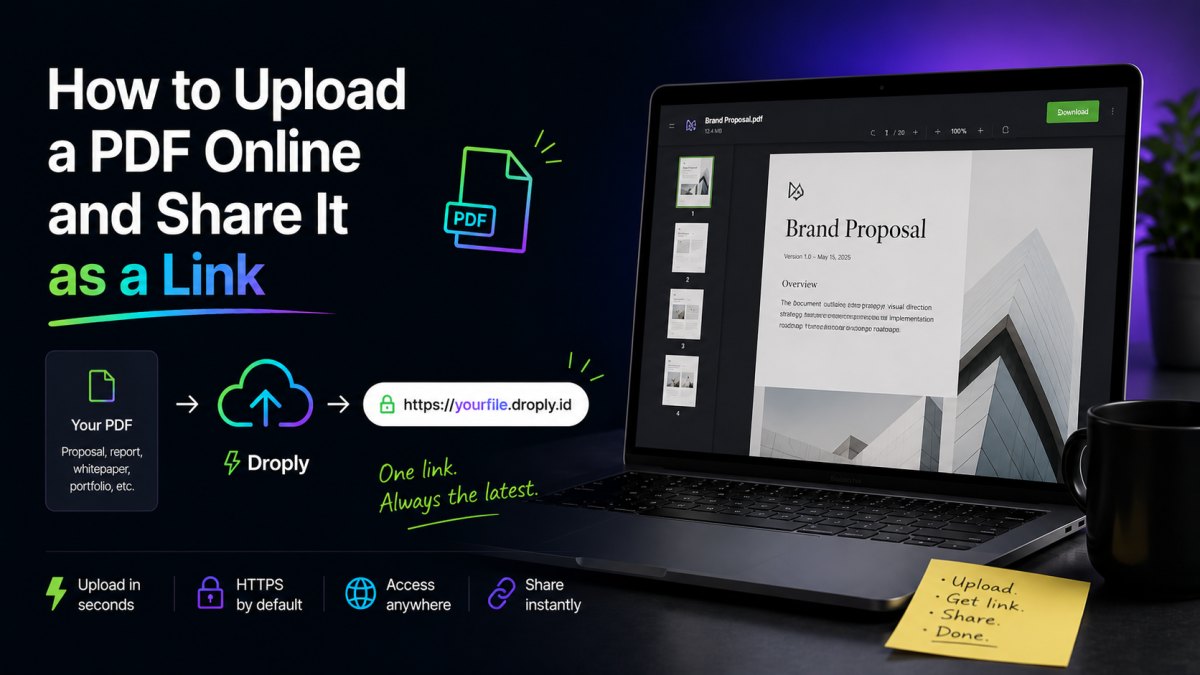
This is where Droply fits. Drag a PDF into the upload box, pick a name, and you get a live HTTPS link in seconds at yourname.droply.id. The link points straight at the PDF, so browsers open it in their native viewer and mobile devices handle it the same way they handle any web file.
A few things that matter for sharing:
- The URL is stable. Re-uploading replaces the file in place, so the link never changes when you ship a new version of the document.
- It is HTTPS by default. No browser warnings.
- No build step. It is literally drag, name, share.
- Custom domains are available on paid plans, so
downloads.yourcompany.com/whitepaper.pdfis a real option. See pricing for details.
Step-by-step: upload a PDF and get a shareable link with Droply
Here is the full flow, end to end.
1. Prepare the file
Before uploading, do two quick things:
- Rename the file to something human.
Q3-pricing.pdfreads better thanPricing_FINAL_v3 (2).pdf, and on a direct link the filename can be visible in the browser tab. - Compress if it is huge. Most PDFs over 5 MB have unoptimized images. Tools like the "Reduce File Size" export in Preview, or any online compressor, can cut size dramatically without visible quality loss. Smaller files load faster on mobile.
2. Upload
Drag the PDF into the Droply upload area. You do not need to zip it, and you do not need to wrap it in HTML. A single PDF is a valid upload.
3. Choose a name
The name you pick becomes the subdomain. Choose something short and meaningful, acme-pitch, 2025-pressroom, studio-portfolio. This is the part of the URL people will see and type.
4. Share the link
You get back a URL like https://acme-pitch.droply.id. That link opens the PDF directly in the browser. You can paste it into email, Slack, LinkedIn, or print it on a business card.
5. Update without breaking the link
When the document changes, new pricing, updated proposal, new portfolio piece, re-upload to the same name. The URL stays the same. Anyone who bookmarked it or printed it on a flyer gets the new version automatically.
When to host a PDF vs. wrap it in a page
A direct PDF link is the right call when:
- The content is the document itself (a proposal, a whitepaper, a resume).
- You want viewers to be able to download or print without friction.
- You need a stable URL you can update silently.
Wrap the PDF in a simple static site when:
- You want a landing page in front of it with a description and a CTA.
- You are bundling several documents, a press kit, a media pack, a portfolio.
- You want analytics or a custom design around the document.
The good news: the same tool handles both. You can ship a one-page HTML site that embeds or links to your PDF, then upload the whole thing as a ZIP and get a single branded URL. If you later switch from a bare PDF to a wrapped page, you keep the same name and the link stays alive.
A quick checklist before you share
- Is the filename clean and professional?
- Is the file size reasonable for mobile readers?
- Does the URL itself look shareable, or is it a 90-character mess?
- Will the link still work in six months?
- Can you update the file without sending everyone a new URL?
If you can say yes to all five, you have done it right.
The takeaway
Email attachments and throwaway transfer links are fine for one-off sends. For anything you want to keep alive, a proposal that gets updated, a portfolio you put on a business card, a whitepaper that appears in five different campaigns, host the PDF the same way you would host a website. You get a clean URL, full control over the file, and a link that does not rot.
Drag the file in, pick a name, share the link. That is the whole job.