

MCP SERVER
Ask Claude to publish your website
Droply runs a remote MCP server, so your AI assistant can publish for you. Connect it once, ask for a page or hand it a finished project, and get a live HTTPS link back. The site lands in your own account, and asking again updates it at the same address.
Works on every plan. Your plan's limits apply.
-
Connect your assistant once
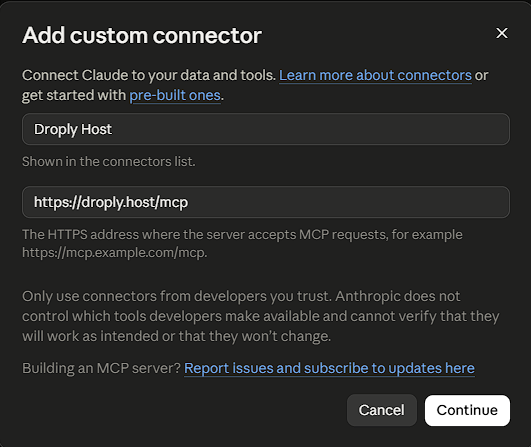
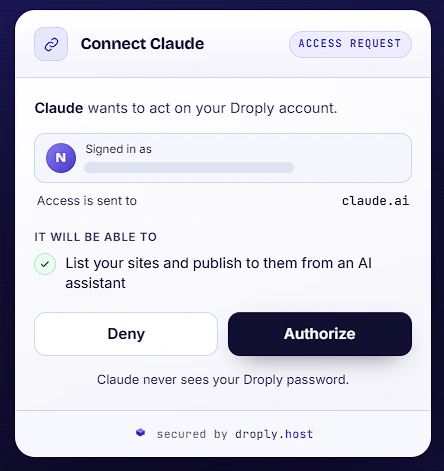
In Claude, add Droply as a custom connector and approve access on the Droply screen. Claude Code connects with one command, and other assistants use an AI assistant token.
-
Ask for what you want
Describe a page, or point Claude Code at a project you have already built. The assistant picks a free address, sends the files and follows the publish until it is live.
-
Share the link, change it any time
You get a live HTTPS link on your account. Ask for a change later and the assistant publishes over the same site, so the link you shared keeps working.
Connect it
The server address to give your assistant:
https://droply.host/mcp
-
Claude.ai and Claude Desktop
In Settings, open Connectors, add a custom connector with this address, and approve access on the Droply screen. Claude's Free plan can add one custom connector.
-
Claude Code
Run this command in your terminal, then run /mcp inside Claude Code and sign in.
claude mcp add --transport http droply https://droply.host/mcp -
Cursor, VS Code, Windsurf and other clients
Create an AI assistant token on your Droply API tokens page and add this address to the client with the header Authorization: Bearer followed by the token. Keep the token in your user settings or an environment variable, never in a project file that could be committed: anyone holding it can replace what your sites show until it expires after 90 days or you revoke it.
What your assistant can do
-
Publish a page or a whole site
One self-contained HTML page, or a folder of HTML, CSS, JavaScript, images and fonts, published as a new site or over one you already have.
-
Pick an address that is free
It checks a subdomain before creating the site, so a new site does not fail on a name somebody else already has.
-
Follow the publish until it is live
Publishing takes a few seconds. The assistant checks until the site is live and gives you the link, or tells you what to fix if a file was refused.
-
Only the access you approve
The connection sees which plan the account is on, and lists and publishes your sites. It cannot delete a site, change a domain or see billing, and you can sign it out from your dashboard at any time.
-
The same checks as every upload
Files from an assistant go through the same malware scan as a dashboard upload, and Autopilot checks every version that goes live for leaked keys.
-
Your account, your sites
Everything lands next to the sites you uploaded yourself, with analytics, custom domains and password protection on the plans that include them.
What it does not do
- It does not build projects. Send the finished files: a project that needs npm install or a build step has to be built first.
- One publish carries up to 300 files and 8 MB in total, or one page of up to 5 MB. Upload bigger projects as a ZIP from the dashboard.
- It cannot delete sites, manage custom domains or change billing.
- An account can publish from an assistant up to 30 times an hour, on top of its plan's own limits.
- On the Free plan, sites carry a small Droply banner and are not indexed by search engines, the same as any upload.