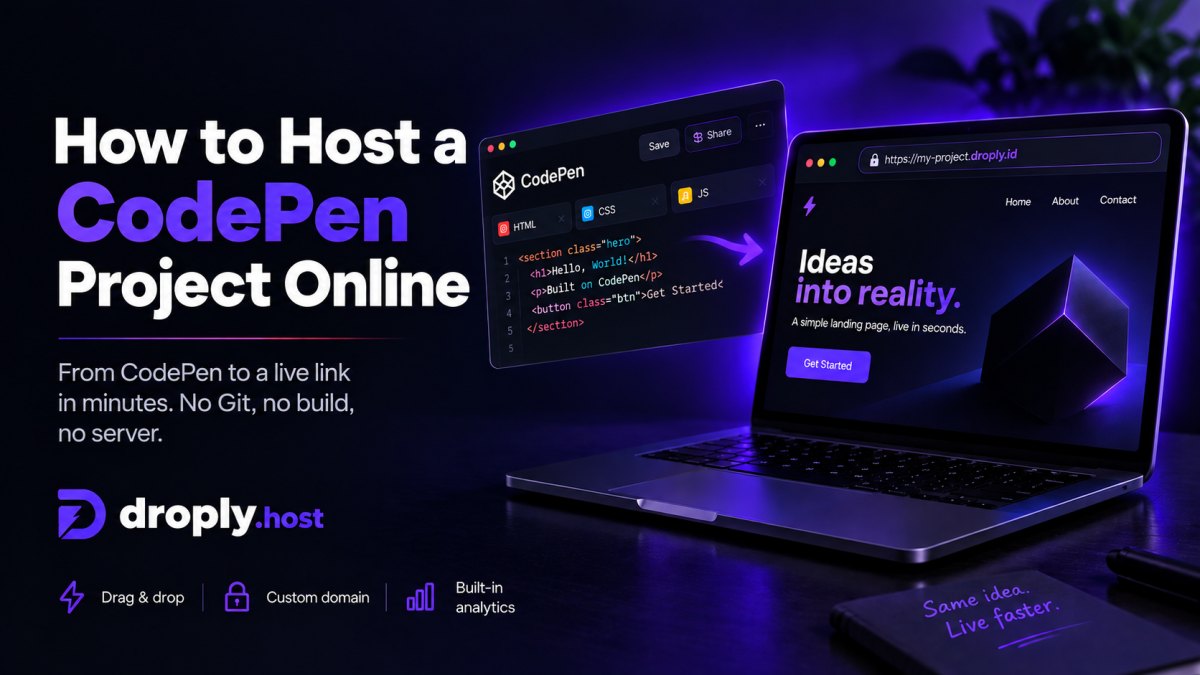
How to Host a CodePen Project Online in Minutes
CodePen is great for building and experimenting with HTML, CSS, and JavaScript directly in the browser.
But at some point, you may want to take a Pen outside CodePen and turn it into a standalone website with its own URL.
The good news is that you do not need to set up GitHub, configure a server, or create a complicated deployment pipeline.
CodePen lets you export your project as regular web files. Once exported, you can upload the finished version to a static host like Droply and have it online in minutes.
Can You Host a CodePen Project as a Website?
Yes.
A standard CodePen project is built from HTML, CSS, and JavaScript, which makes it a natural fit for static hosting.
When you export a Pen, CodePen gives you a ZIP containing your source files and a browser-ready version of the project.
That means you can take a project that currently lives at CodePen and publish it as a standalone website such as:
https://my-project.droply.id
Or, if you prefer, connect your own custom domain later.
The basic workflow is:
- Export your Pen from CodePen
- Extract the downloaded ZIP
- Find the compiled
distfolder - Upload it to Droply
- Open your new live URL
Let's go through each step.
Step 1: Export Your Pen From CodePen
Open the Pen you want to publish.
In the CodePen editor, find the Export option and choose:
Export .zip
CodePen will download a ZIP file containing your project.
Depending on the name of your Pen, the file may look something like:
my-landing-page.zip
or:
CodePen_Export_xxxxx.zip
Save the file somewhere easy to find.
Step 2: Extract the CodePen ZIP
Do not upload the original CodePen export immediately.
First, extract the ZIP on your computer.
Inside the exported project, you will normally find two important directories:
src/
dist/
The difference matters.
The src folder
The src directory contains the source code from your CodePen project.
If you used preprocessors such as Sass, SCSS, Less, TypeScript, or Babel, these files may not be directly usable by a browser without being compiled first.
The dist folder
The dist directory contains the browser-ready version generated by CodePen.
This is usually the folder you want to publish.
Inside it you may see files such as:
index.html
style.css
script.js
The exact files depend on your Pen.
For static hosting, the important part is that the finished project contains an index.html file that the browser can open as the homepage.
Step 3: Check the Project Before Uploading
Open the dist folder and make sure your files are there.
A simple CodePen export might look like this:
dist/
├── index.html
├── style.css
└── script.js
Try opening index.html locally in your browser.
If the page looks correct, you are ready to publish it.
If something is missing, check whether your Pen depends on external libraries, images, fonts, APIs, or other resources.
For example, your project might load:
- Google Fonts
- Font Awesome
- external JavaScript libraries
- images hosted on another website
- API data
- CDN-hosted CSS
Those resources will still need to be accessible after the website is published.
Step 4: Upload the CodePen Project to Droply
Now go to Droply and upload the contents of the dist folder.
You can either upload the folder directly or create a ZIP containing the finished files.
For example:
my-codepen-site.zip
├── index.html
├── style.css
└── script.js
The important detail is that index.html should be at the top level of what you upload.
Then:
- Open Droply
- Drag your folder or ZIP into the upload area
- Choose a name for your site
- Publish it
Droply will give the project its own HTTPS URL.
For example:
https://my-codepen-project.droply.id
Your CodePen project is now a standalone website.
No Git repository, server configuration, or deployment command is required.
What Happens to HTML, CSS, and JavaScript?
They work the same way they would on any static website.
Your HTML is served to the browser, your stylesheets are loaded, and your JavaScript runs client-side.
For example, if your exported index.html contains:
<link rel="stylesheet" href="./style.css">
<script src="./script.js"></script>
those files will continue to work as long as you preserve the same folder structure when uploading the site.
This is why you should upload the entire finished project rather than copying only the HTML file.
What If My CodePen Uses Sass or Another Preprocessor?
This is one of the main reasons you should use the exported dist folder instead of src.
CodePen can compile preprocessors for you.
For example, your Pen might use:
SCSS → CSS
TypeScript → JavaScript
Babel → JavaScript
Pug → HTML
The source version may require a build tool, but the compiled files inside dist are already prepared for the browser.
Droply hosts the finished static output. It does not need to run the CodePen build process again.
Can I Use My Own Domain?
Yes.
You can first publish the website using the included droply.id URL and make sure everything works.
Later, you can connect your own domain.
Instead of:
https://portfolio-example.droply.id
you could use:
https://portfolio.example.com
or your main domain:
https://example.com
Droply handles HTTPS certificates automatically after the domain is connected.
This is useful if a CodePen experiment eventually becomes a real landing page, portfolio, product website, or client project.
Can I Update the Website Later?
Yes.
A CodePen project rarely stays unchanged.
You might fix some CSS, add a new section, change JavaScript, or redesign the entire page.
When that happens:
- Export the updated Pen again
- Extract the new export
- Use the updated
distfolder - Upload the new version to the same site
Your existing website URL can stay the same.
That means you do not have to send everyone a new link every time the project changes.
CodePen vs Hosting Your CodePen Project
CodePen and static hosting solve different problems.
CodePen is primarily an environment for creating, experimenting with, demonstrating, and sharing frontend code.
A standalone host is useful when the project becomes something people should visit as an actual website.
For example:
| Use case | CodePen | Standalone hosting |
|---|---|---|
| Testing CSS ideas | Great | Usually unnecessary |
| Sharing a code experiment | Great | Optional |
| Building a frontend demo | Great | Useful |
| Publishing a portfolio | Possible | Better suited |
| Launching a landing page | Possible | Better suited |
| Using your own domain | Depends on setup | Yes |
| Sending a clean client URL | Less ideal | Better suited |
You do not have to choose one or the other.
You can continue using CodePen as your editor and publish finished versions separately whenever you need a real website.
Common Problems When Hosting a CodePen Export
Most CodePen projects work without much effort, but a few issues are worth checking.
The Website Shows a Blank Page
Make sure the uploaded project contains an index.html file.
It should be at the root of the files you publish.
For example:
index.html
style.css
script.js
is better than accidentally creating:
my-project/
    dist/
        index.html
when the host is expecting the entry page at the top level.
CSS or JavaScript Is Missing
Check the paths inside your HTML.
Relative URLs such as:
./style.css
./script.js
should work as long as you preserve the exported directory structure.
If you move files around manually after exporting the Pen, those paths may break.
Images Are Missing
Some Pens use images hosted elsewhere.
For example:
<img src="https://example.com/image.jpg">
Your website still depends on that external URL.
If the image is removed or blocked by the original provider, it will disappear from your website too.
For an important project, consider downloading those assets and including them with your site.
An API Stops Working
Static hosting does not provide a backend.
JavaScript can still call external APIs, but those APIs must allow requests from your new domain.
You may need to update:
- CORS settings
- allowed origins
- API redirect URLs
- OAuth callback URLs
Also be careful with credentials.
Never place private API secrets, database passwords, or server-side credentials directly inside frontend JavaScript. Anything delivered to a visitor's browser should be considered public.
What Can You Publish From CodePen?
CodePen exports are useful for much more than small experiments.
You can turn them into:
- landing pages
- personal portfolios
- product demos
- event pages
- interactive prototypes
- client previews
- documentation pages
- frontend experiments
- marketing microsites
- simple business websites
A Pen can start as a small experiment and eventually become something worth publishing independently.
You do not need to rebuild it from scratch just because it started on CodePen.
The Fastest Way to Host a CodePen Project
If you already have the project finished, the whole process is simple:
CodePen
   ↓
Export .zip
   ↓
Extract the files
   ↓
Open dist/
   ↓
Upload to Droply
   ↓
Your project is live
CodePen handles the editing and compilation.
Droply handles publishing the finished static website.
There is no Git setup, deployment configuration, or server to maintain.
Frequently Asked Questions
Can I host a CodePen project for free?
Yes. If your exported Pen produces a static HTML, CSS, and JavaScript website, you can publish the finished files using a static hosting service such as Droply.
Can I turn a CodePen into a real website?
Yes. Export the Pen, use the compiled files inside its dist folder, and publish them using a static host. The result behaves like a normal static website and can have its own URL.
Which CodePen folder should I upload?
In most cases, upload the contents of the dist folder. It contains the compiled browser-ready version of your Pen.
The src folder contains the original source files and may include code that still requires preprocessing.
Do I need GitHub to host a CodePen project?
No. GitHub is one possible workflow, but it is not required. You can export the finished files from CodePen and upload them directly to Droply.
Do I need Node.js or npm?
Not for a standard compiled CodePen export. CodePen has already generated the browser-ready files inside the dist directory.
If your project requires its own runtime, backend, or server-side Node.js application, then static hosting alone is not enough.
Can I connect a custom domain to my CodePen website?
Yes. Once the exported project is hosted on Droply, you can connect a custom domain on a plan that supports custom domains.
Publish Your CodePen Project
Your CodePen does not have to stay inside CodePen.
Export the project, take the finished files from the dist folder, and publish them as a standalone website.
With Droply, you can upload the finished project and get an HTTPS URL without setting up Git, a server, or a deployment pipeline.
Export your Pen, drop the finished files into Droply, and put it live.