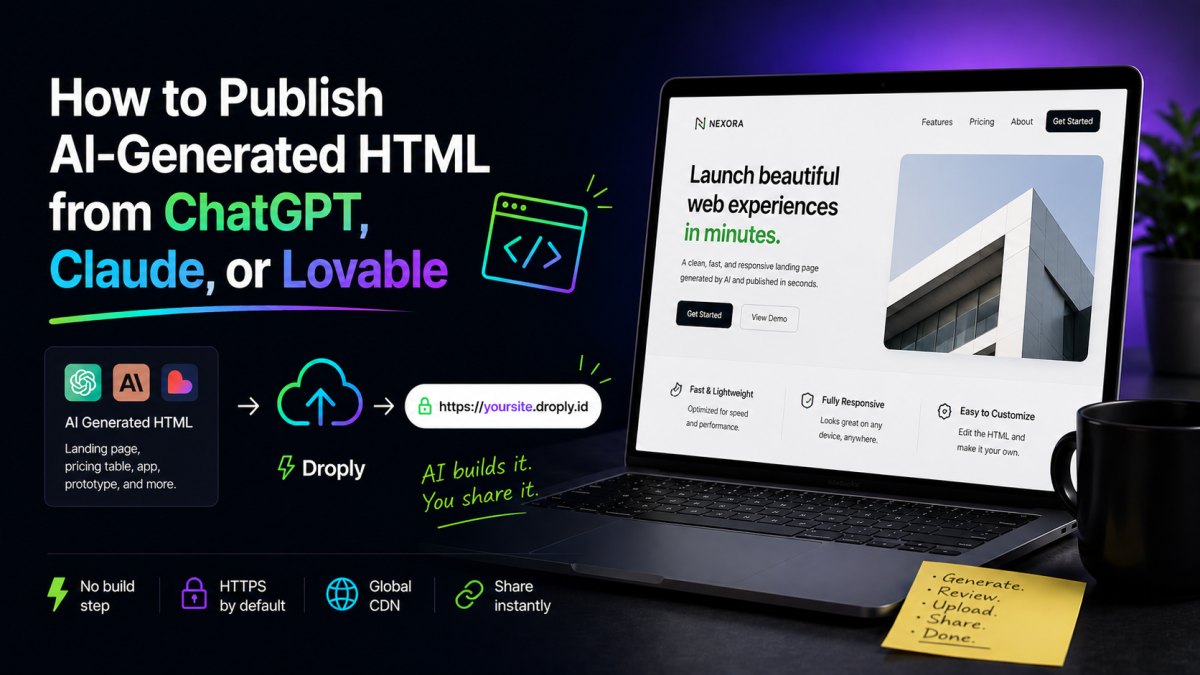
AI tools are great at producing a full HTML page in one shot. You ask ChatGPT for a landing page, Claude for a pricing table, or Lovable for a small app prototype, and you get back a working file. The awkward part is what comes next: turning that file into a real URL someone else can open.
This guide walks through the practical steps, getting clean, self-contained HTML out of each tool, sanity-checking it locally, and putting it online fast.
Step 1: Get clean, self-contained HTML out of the AI tool
The biggest mistake people make is copying half the output. You want a single, complete document that starts with <!DOCTYPE html> and ends with </html>. If the AI splits things across multiple files or assumes a build step, you'll have a bad time deploying it.
Prompting ChatGPT
ChatGPT will often default to React snippets or framework-specific code. To get a deployable file, be explicit:
"Give me a single self-contained
index.htmlfile. Inline all CSS in a<style>tag and all JavaScript in a<script>tag. No external build tools, no npm, no React. Use only CDN links for any libraries."
Then copy the entire code block into a file named index.html. If ChatGPT produced multiple files (HTML + separate CSS + separate JS), either ask it to inline everything or save each file with the exact names referenced in the HTML.
Prompting Claude
Claude tends to produce cleaner standalone HTML by default, especially in Artifacts. If you're using Artifacts, the "HTML" artifact type gives you exactly the file you need, just download it.
If you're prompting in chat, the same rule applies: ask for a single self-contained file. Claude is usually good about Tailwind via CDN and putting JavaScript directly in the page, which makes deployment trivial.
Exporting from Lovable
Lovable generates real React projects, which is a different situation. You can't deploy the source files directly to a static host, you need the built output. Two options:
- Use Lovable's built-in publish flow if you just want a quick preview link.
- Export the project, run
npm installandnpm run buildlocally, then deploy the contents of thedist/folder. That folder contains real static files (HTML, CSS, JS) you can host anywhere.
The key idea: static hosts serve pre-built files. They don't run your build for you. So whatever you upload has to already be the finished output.
Step 2: Test the file locally before publishing
Open the HTML file directly in your browser by double-clicking it. Most of the time this works, but two things commonly break:
- Fonts or fetches that require HTTPS. Some Google Fonts CDN URLs and
fetch()calls behave differently when opened viafile://. - Relative paths to images or assets. If the AI referenced
./logo.pngbut didn't include the file, the page will render with broken images.
For a slightly more realistic local test, run a tiny static server. If you have Python installed:
python3 -m http.server 8000
Then visit http://localhost:8000. This catches problems you'd otherwise only see in production.
Step 3: Decide what kind of URL you actually need
Before publishing, be honest about what you're sharing:
- A throwaway preview for a client or teammate. You want a real HTTPS link, fast, with no setup.
- A real project that will live on your domain. You want a custom domain and the ability to swap content without changing the URL.
- A prototype you'll iterate on. You want to upload, get feedback, fix things, and re-upload, without the URL changing every time.
This is exactly the gap Droply was built for. You drag your index.html (or a ZIP if you have multiple files), pick a name, and get a live URL at <name>.droply.id in seconds. No git, no CI, no vercel.json. Re-uploading replaces the content in place, the URL stays the same, so your feedback loop is just edit → upload → refresh.
For real projects, paid plans add custom domains and remove the "powered by" banner. See pricing.
Step 4: Publish the file
Single HTML file (ChatGPT or Claude output)
- Save the AI output as
index.html. - Drag it onto Droply.
- Pick a name like
client-pitchorlanding-v2. - Share the URL.
That's it. The file is served over HTTPS immediately.
Multiple files (Lovable build output, or HTML with assets)
If you have a folder with index.html plus images, CSS, JS, or a Lovable dist/ directory:
- Zip the entire folder (the contents, not the folder itself,
index.htmlshould be at the root of the ZIP). - Drag the ZIP onto Droply.
- Done.
Droply unpacks it and serves the structure as-is. This is also how you'd deploy the output of any static site generator, Astro, Eleventy, Hugo, plain Vite, as long as you upload the built files, not the source.
A PDF instead of HTML
If your AI tool produced documentation, a one-pager, or a report and you exported it as a PDF, you can drag that onto Droply too. You get a clean URL you can share without attaching anything to email.
Step 5: Iterate without breaking the URL
This is where AI-generated sites get painful on most platforms. You tweak the prompt, get a new file, and now you need to redeploy, and on many hosts that means a new preview URL or a fiddly CLI command.
On Droply, the workflow is:
- Regenerate the HTML from ChatGPT, Claude, or Lovable.
- Drag the new file onto the same project name.
- The URL doesn't change. Anyone with the link sees the new version on refresh.
That's the same loop whether you're polishing a landing page, iterating on a pitch deck PDF, or shipping the tenth revision of a prototype.
Common gotchas
- Don't paste partial code. Always grab the full document. If the AI says "and here's the JS file" separately, either ask it to inline everything or save the files with correct names and ZIP them.
- Watch for hardcoded
localhostURLs. AI tools sometimes generatefetch('http://localhost:3000/api/...'). That won't work in production. Either remove those calls or replace them with a real API endpoint. - Static means static. If your prototype needs a backend (database, auth, server-side logic), a static host can serve the frontend but you'll need an external API for the dynamic parts. For pure prototypes, mock the data in JavaScript.
- Mind the assets. If your HTML references
images/hero.jpg, that file needs to be in your upload too.
When to use what
- ChatGPT or Claude → single HTML file → drag to Droply. Fastest path. Best for landing pages, one-pagers, demos, simple tools.
- Lovable → export → build → ZIP
dist/→ drag to Droply. Best for richer prototypes that need React. - PDF export → drag to Droply. Best for reports, proposals, and documents you'd otherwise email as attachments.
The shared idea: AI tools are now fast enough that the bottleneck is no longer producing the page, it's getting it in front of someone. Keep that last step short and you ship more.